
6 Common Video Conferencing Problems and How to Fix Them
Video calls can face poor audio, video lag, camera, network and screen sharing issues. Here are the most common video conferencing problems and their practical fixes.
Emarson
Enterprise IT & Technology Solutions
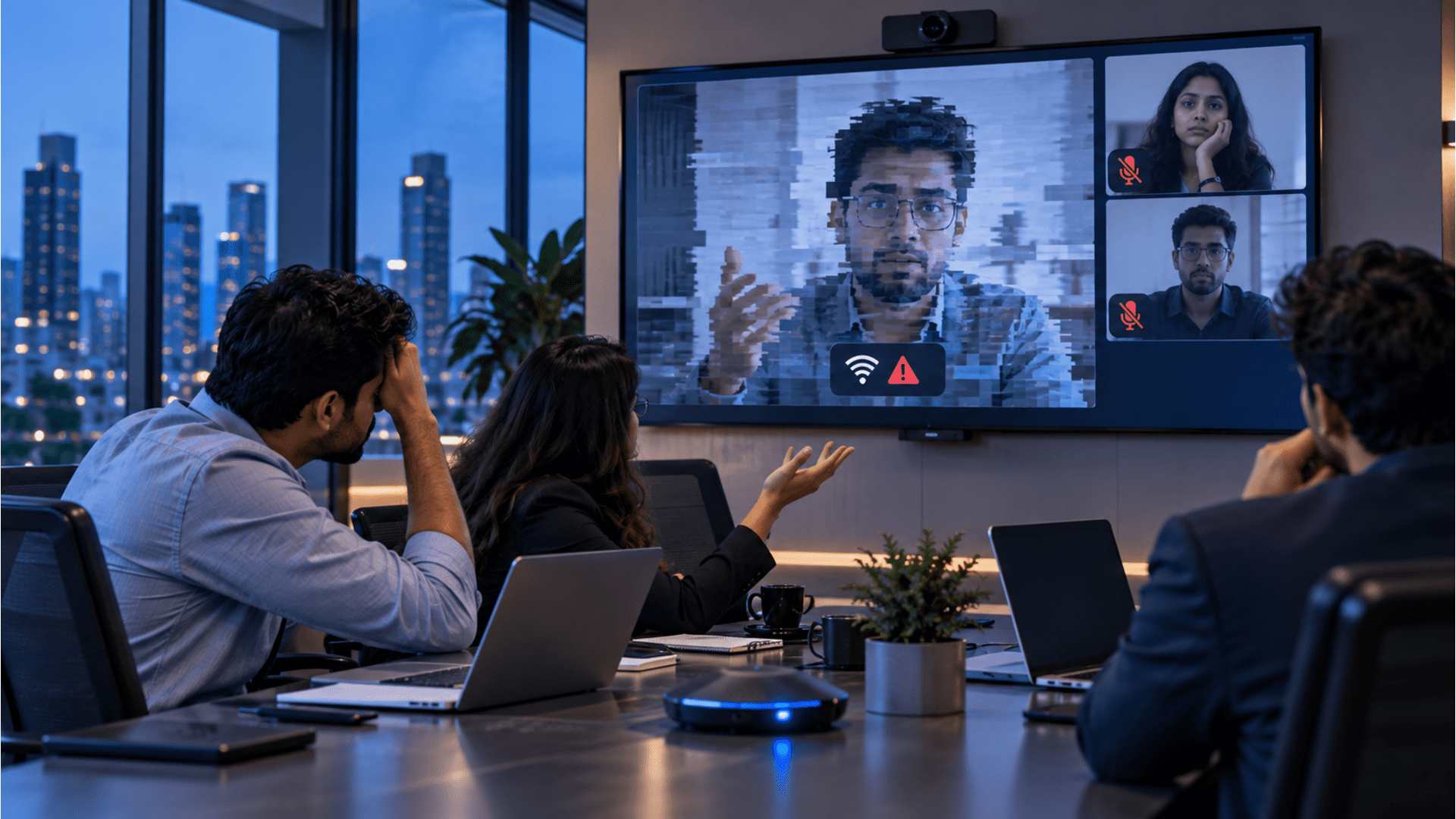
Video Conference meetings have become a part of our everyday work. But when the audio suddenly disappear or the video starts freezing or refuses to connect, a five-minute meeting can quickly turn into a 20-minute troubleshooting session, which no one ever wants.
Most video conferencing problems are not something mysterious. They usually come down to a few common repeatable issues involving audio, cameras, connectivity, equipment or the meeting platform. So here are six of the most common ones and what you can do about them.
Poor Audio Quality in Video Conferencing Meetings
If people keep saying “Can you hear me?” during a meeting that too again and again, the problem may be with the microphone, speakers, room acoustics or their configuration. Low volume, muffled voices and background noise are common video conferencing audio problems, especially in larger meeting rooms.
How to fix it
Check that the correct microphone and speaker are selected in your meeting platform. Make sure microphones are positioned close enough to the participants and that speakers are not placed in a way that causes feedback. For larger rooms, use microphones designed to provide sufficient coverage instead of relying on a laptop microphone. If poor audio continues, look at the room as a whole. Acoustic treatment, microphone placement, speaker positioning and the right conference room video conferencing equipment can make a significant difference to the call quality.
Video Lag, Freezing and Poor Video Conferencing Quality
A frozen face or delayed conversation can make a video meeting almost impossible to follow. Video conferencing video problems can appear as freezing, blurry images, delayed video or sudden drops in quality.
How to fix it
Start by checking the network connections as well as whether the other applications are consuming bandwidth. If only one participant is affected, check their device and connection. If everyone in the meeting is experiencing the same issue, investigate the network or meeting platform. For businesses, reliable video conferencing solutions should consider more than camera quality. Network performance, latency, packet loss, bandwidth and Wi Fi coverage can all affect the video conferencing experience.
Camera or Microphone Not Working During Video Meetings
One of the most common video conferencing equipment problems is also one of the simplest. The camera is not detected, the microphone does not appear or the meeting platform has selected the wrong device.
How to fix it
First, check the obvious things. Is the camera or microphone actually connected? Is the meeting app allowed to use it? Open the audio and video settings in Teams, Zoom, Google Meet or whichever platform you're using and make sure the right device is selected. If you're still stuck, try the camera or microphone in another app. That quick check can tell you whether the problem is with the device itself or just the meeting software.
If this keeps happening in the same conference room, don't keep swapping devices and hoping for the best. The problem could be somewhere in the room's hardware, configuration or integration. In that case, a proper video conferencing setup may be worth looking at rather than fixing the same issue every time a meeting starts.
Echo and Background Noise in Video Conferencing Calls
You know that annoying moment when someone says, “There’s an echo,” and suddenly the whole meeting stops while everyone tries to figure out where it’s coming from? The same thing happens with background noise. An AC running nearby, people talking outside the room, chairs moving, even a door opening can end up being picked up by the microphone. It’s a small thing, but when it keeps happening, nobody can really focus on the meeting.
How to fix it
Before changing any equipment, check where the microphones and speakers are sitting. Sometimes moving them a little or changing the audio settings is enough to sort things out. Make sure echo cancellation is switched on too. If the noise is still getting picked up, look around the room. Glass walls, empty walls and hard floors can make sound bounce around, which is usually where things get messy.
And this is why aconference room video conferencing setup shouldn’t be planned by looking at the camera and microphone alone. A small room with six people and a large boardroom with twenty people are going to need very different audio setups. Where people sit, where the speakers are placed and how the room sounds all matter.
Internet and Connectivity Problems in Video Conferencing
When a meeting keeps disconnecting, the problem may not be the video conferencing software at all. Video conferencing connection problems can result in frozen video, delayed audio, dropped calls and poor call quality.
How to fix it
Check the internet connection first, but do not stop at the download speed. Look at network congestion, latency, packet loss and Wi Fi coverage as well. If several people are using video conferencing at the same time, network capacity and configuration become even more important. For an enterprise, video conferencing connectivity should be considered as part of the overall IT infrastructure. A reliable network helps cameras, microphones, displays and collaboration platforms work together consistently.
Screen Sharing and Video Meeting Platform Problems
You finally get everyone into the meeting, and then the presentation refuses to appear on screen. Screen sharing problems can be caused by application permissions, display settings, device configuration or compatibility issues.
How to fix it
Check that screen sharing is enabled and that the correct display or sharing option is selected. If you are using a dedicated meeting room, verify that the room system and collaboration devices are configured correctly for the platform being used. Whether your organisation uses Microsoft Teams, Zoom, Google Meet or Webex, the video conferencing system should make it simple to join meetings, share content and collaborate without requiring technical assistance every time.
Should You Upgrade or Replace Your Conference Room?
Not always.
If the room itself is still suitable, you may only need to upgrade the equipment causing the problems. That could mean upgrading the camera, microphones, speakers, display or collaboration tools instead of rebuilding the entire room.
The right approach depends on the condition of your existing equipment, room size, number of users and the way meetings are conducted.
If you are considering an upgrade, Emarson's video conferencing solutions can help you identify what needs to change and what can continue to be used.
"Poor audio, video lag, camera issues and connectivity problems can turn a simple meeting into a frustrating experience. The right video conferencing solutions can keep your meetings clear, connected and ready to work."